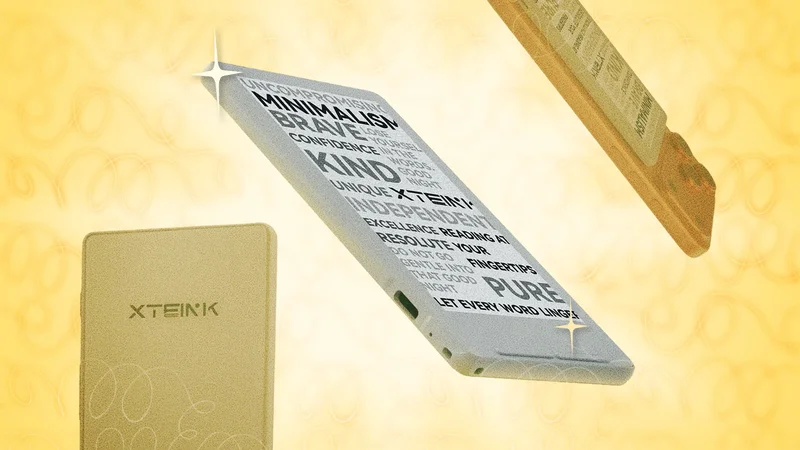
Most people who read e-books do so on a phone or a Kindle, and that's fine. But for the more exacting (if not adventurous) digital reading enthusiasts out there, I recommend exploring life outside of Amazon's ecosystem—and I particularly recommend doing so with one of the tiny e-readers made by Xteink, a Chinese tech company with an unfortunate name but some great devices.
Out of the box, an Xteink X3, X4, or X4 Pro can seem a little finicky, or even intimidating. But if you've mastered the basics of navigating their clunky operating systems and loading up a few books, you'll quickly find they are both magically portable and a joy for distraction-free reading. And once you're a convert, you can use these tips and hacks to get even more out of your impossibly wee e-reader.
Convert your EPUBs to XTC to preserve their formatting
While getting e-book formatting to match what you'd find in a printed book has always been a challenge, the native software that ships with all Xteink devices handles it particularly poorly. While you certainly can read EPUB files loaded onto them, they may show up with awkward formatting, such as unnecessary spacing between paragraphs or missing indents. Heck, these devices still can't display text in bold or italics, never mind if you're reading something with embedded charts or images.
You can solve for this by converting your books to a proprietary format called XTC before loading them onto your e-reader. Rather than a free-flowing text document, an XTC file is essentially a series of bitmap images of the original e-book. All images, stylized headers, and text formatting will thus be preserved, with a few downsides: The image can look slightly less crisp, and the file will be a lot larger—50MB or more, depending on the book, versus 2MB or so for most EPUBs.
There are a few ways to transform your EPUBs into XTC files, but the easiest is this web converter, which allows you to customize the font choice, page orientation, text alignment, and other factors, then download the finished result to sideload onto your device.
If converting to XTC is too cumbersome or limiting for you, you have another option: Replace the Xteink software entirely. Xteink devices run on dead-simple ESP32 processors, and they are mostly open and easily hackable—meaning you can overwrite the stock firmware without the need to jailbreak them first.
If you think that sounds onerous, it isn't: In less than a year since the Xteink X4 launched, the device has built up a huge online following of tech-heads and tinkerers, and they've not only created a custom firmware for Xteink devices—called CrossPoint Reader—they've built a website with a tool that allows you to flash your device with the new software with a single click. (Note: As of this writing, CrossPoint is not yet available for the new X4 Pro, though it is in development.)
After upgrading it to CrossPoint, you'll suddenly find your Xteink e-reader a lot more pleasant to use, with more straightforward menus and options and a host of improvements to the e-reading experience, including a wider selection of fonts and more support for customizing your margins, line spacing, and more.
But you need not stop there. There are dozens of "forks" of CrossPoint built on the same basic platform but offering different tools and custom options. Flashing with these takes one extra step—you'll need to download the .bin files from GitHub first, then choose "Custom .bin" from the CrossPoint Flash Firmware page—but it's still a fairly foolproof process. Here are a few fun ones to consider, or you can browse the entire list:
- CrossInk: This popular CrossPoint variant emphasizes improved fonts and adds basic reading stats.
- CrossWordle: This option adds a Wordle-esque game to the CrossPoint firmware.
- CPR-vCodex: This CrossPoint fork is all about the stats, offering in-depth, granular tools for tracking and gamifying your reading.
- CrossPet: This one adds a Tamagotchi-like virtual chicken to your e-reader for some reason.
- Biscuit: Aiming to turn your Xteink device into more than an e-reader, Biscuit uses tile-based navigation and adds features like a Bluetooth scanner, a simple chat app, a password manager, calculator and flashcard apps, and some games (including a passable Tetris clone).
Use this Calibre plugin to optimize your books for CrossPoint
Even with custom firmware, it can be tough to get your e-book files looking how you want them to on Xteink devices, but another one-click tool can help with that. Calibre is a popular free program for managing your e-book library on your computer, so you can customize your files before transferring them to your device, and a group of developers have built a plugin for the Calibre app that will automatically optimize your EPUB files for use in CrossPoint.
To get started, download the .zip file on this page. Open Calibre, then in the Preferences menu, choose Advanced > Plugins > Load plugin from file and select the .zip file to install it. Restart Calibre. Add the tool to the toolbar by going to Preferences > Interface > Toolbars \& menus. To use it to optimize your EPUBs, select one or more of them in Calibre, then click "EPUB Workflow" in the toolbar. Check the options you want to tweak, from shrinking images to removing extraneous code to repairing any errors in the file, then click OK.
From there, you can use another Calibre plugin to send books directly to the device. To use it, head to this link and download the .zip file and repeat the process above to install it. On your Xteink device running CrossPoint, connect to the same wifi as your computer, then go to File transfer > Connect to Calibre library. Your device will now appear in Calibre, and you can use the "Send to device" button there to load files onto it directly.
What do you think so far?
Create a KOreader account to sync your reading progress across multiple devices
Xteink devices are great for reading on the go, but maybe you prefer to use something with a larger screen when you're not out and about. Well, there's an easy way to sync your reading progress between devices, provided you've got another e-reader that can run KOReader, a free, open-source app specifically designed for e-ink displays. KOReader syncs automatically with Kobo devices, but you can also sideload it onto an Android device, whether that's your phone or an e-ink Android tablet like the Boox Palma. On iPhone, you can install the Readest app from the App Store; it has a KOReader sync plugin. (There's no easy sync-to-Kindle option, unless you want to jailbreak that device.)
Syncing your progress is pretty simple—you just have to have the same EPUB file loaded on both devices, and you need to be signed in to the same KOsync account (and server) on both of them. The CrossPoint Reader site has a page where you can create a KOsync login: Choose a username and password, and leave the server as the default. Next, log into KOReader Sync on your Android device (the process will vary by the device or app you're using), and use those same credentials on your Xteink device by heading to Settings > System > KOReader Sync. Once you've logged in properly, syncing your progress is as simple as heading back to that KOReader Sync menu on your Xteink device and choosing "Authenticate."
Try these sources for better-looking public domain e-books
Xteink devices are great because they use an open platform that doesn't tie you down to any one retailer (like Kindle yolks you to Amazon). The downside is that it can be a lot harder to find books to read on it, since retailers like Amazon and Barnes \& Noble usually laden their e-book files with Digital Rights Management (DRM) software that will prevent you from loading them on just any device.
I discuss the "DRM problem" more in my review of the Xteink X4 Pro, and suggest a few places where you can buy DRM-free books, but the easiest method is to look for titles freely available in the public domain. Unfortunately, not all DRM-free public domain EPUB files are created equal—the ones you'll find on Project Gutenberg, for example, might have shoddy formatting that makes them look like a website from 1991.
Fortunately, there are a few places you can source public domain e-books that don't look like they're worth what you paid for them (i.e., nothing). Here are a few I suggest the next time you're in the mood to read one of the classics:
- Global Grey E-Books: This site is a labor of love for the woman who runs it; she personally formats all the EPUBs to ensure they are easily readable. I don't love the AI-generated covers she favors, but it's a minor gripe given she does it all for free.
- Standard Ebooks: According to this donation-supported e-book repository's "About" page, Standard Ebooks is "a volunteer-driven effort to produce a collection of high-quality, carefully formatted, accessible, open source, and free public domain ebooks that meet or exceed the quality of commercially produced ebooks." I'd say they've succeeded on that score: Every book I've sampled from their collection looks indistinguishable from a commercially produced e-book. The covers are even pretty nice, created using classical works of art also in the public domain.