For years, customizations were the primary reason I stayed loyal to Android. The deep launcher flexibility made most standard launchers I used feel rigid by comparison.
Lately, though, my priorities have shifted toward clutter-free minimalism. I started trimming down extra apps and widgets on my Google Pixel 9 Pro XL and Samsung Galaxy Z Flip 7.
So it turned out to be vital in improving my daily focus and productivity.
That itch for an ultra-clean interface led me to search for the perfect launcher alternatives.
After weeks of searching, I settled on a launcher that nailed what I wanted from my ideal Android interface.
This shift even forced me to change how I use my phone by relying on gestures.
Digital minimalism
Trivia challenge
Think you know the art of living with less tech? Put your knowledge of digital minimalism to the test.
Who coined the term 'digital minimalism' and wrote the definitive book on the subject?
What is a 'digital detox' most commonly defined as?
According to research cited by digital minimalism advocates, which of the following is a documented effect of heavy social media use?
Henry David Thoreau's 1854 book 'Walden' is often cited by digital minimalists as an early spiritual ancestor of the movement. What did Thoreau famously do?
In the context of digital minimalism, what does the concept of 'deep work' refer to?
What is a 'dumbphone,' as used in digital minimalism circles?
Which technology critic wrote 'Ten Arguments for Deleting Your Social Media Accounts Right Now,' published in 2018?
The concept of 'nomophobia' is sometimes discussed in digital minimalism literature. What does it describe?
Your Score
Thanks for playing!
What is Pie Launcher?
I removed apps and widgets from my home screen
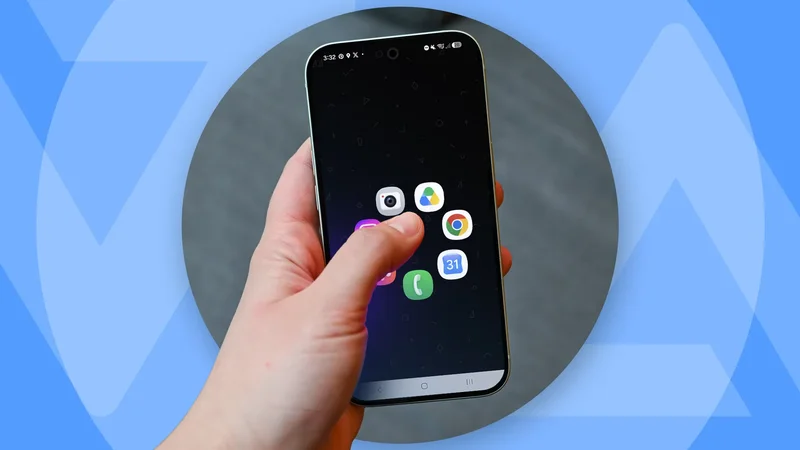
That launcher is called Pie Launcher. It’s an ultra-minimal and lightweight interface that relies heavily on gestures for interaction.
Pie Launcher arranges apps in a wheel or pie-like layout on a single screen and assigns everything to the app drawer.
Instead of tapping apps or widgets on the screen, you rely on gestures for most of the time.
Unlike standard options, or even the Pixel Launcher on my Pixel 9 Pro XL, Pie Launcher hides everything.
Out of the box, it removes every icon and widget, leaving you with only your wallpaper. There’s even an immersive option that hides the navigation bar and status/notification bar.
Pie is in the top tier of launchers in terms of minimalism.
Using Pie Launcher means I need to adjust because I didn’t have widgets like weather, media player, and folders on my home screen.
It took a fair amount of muscle memory conditioning before my thumb instinctively knew where to reach.
Frankly, that’s not an easy task for someone who has relied on this standard layout for years.
Using the Pie Launcher
It makes my home screen efficient
While initially intimidating, navigating the Pie Launcher was a breeze after I got the hang of it.
Apps only appear when I actively press and hold on any part of the home screen.
Pressing brings up a circular array of pinned apps, allowing me to launch an app by sliding my thumb or finger toward it.
Navigating this ring using sweeping thumb movements quickly becomes second nature, though the learning curve steepens if you cram too many apps into it.
The launcher doesn’t limit how many apps you can jam into a single pie.
I loaded up as many as the interface permitted, but efficiency downgraded. I constantly made accidental launches.
The sweet spot sits comfortably below a dozen items. The fewer shortcuts you mapped, the faster you can memorize the apps’ positions.
Your mileage may still vary, though, so it’s not a constraint if you’re used to a denser ring.
You can pin as many apps as you like on the main app circle and secondary app circle.
The primary hurdle was launching the apps that are excluded from the main wheel. Without a dedicated screen to swipe over to, I had to open the app drawer more often.
Fortunately, the developer included an option to launch the keyboard whenever I open the drawer. Typing a letter or two quickly narrowed down the full list.
That extra step adds friction, but over time, the workflow becomes as fast as navigating a traditional layout, but without the clutter.
Alternatively, voice shortcuts through Gemini or Bixby can be handy. Searching using my voice is as fast as manually tapping.
Customizing the Pie Launcher
Create a secondary circle of apps
Adding or removing items is handled via the built-in pie editor. You can trigger it from the app drawer or by long pressing an app icon while building your menu.
It isn’t the fastest management pipeline, and I haven’t found a shortcut that bypasses the need to open the app drawer.
If a single wheel isn’t enough, you can toggle a secondary menu in the settings menu. This menu can also be set to recent apps or all apps, but I doubt you’d want the latter.
Accessing this second pie relies on the same press-and-hold gesture, but it is now anchored to the upper half of the display.
This allowed me to build out a set of secondary shortcuts that aren’t pinned in my primary wheel, such as utility tools and smart home apps.
Both wheels support layout tweaking. I can rotate the orientation, shrink or expand individual icons, and tweak the outer ring spacing.
Custom icon pack support is available, which is useful in matching the vibe with my wallpaper.
I sacrificed my widgets
But my focus has significantly improved
Committing to Pie Launcher required weighing several major trade-offs. It wasn’t easy to drop widgets or miss my app folders.
However, the result was a smart move. My Pixel phone has become more functional, and usage is more efficient.
I only needed to open an app when necessary, but even then, using gestures beats the traditional layout.
Now, after running this setup for weeks, it’s harder to return to the standard Pixel Launcher, or even to Mur Launcher, which I used for a month.
Even better, Pie Launcher is completely free, so it’s easy to recommend for anyone looking to improve their focus (and reclaim their sanity).
But that’s assuming you don’t mind spending time training your muscle memory first.