My Google Maps routine used to have too many steps.
I'd have to find the home screen folder the app was in, open it, wait for it to load, type in a search query, correct the app when it found the wrong location, and finally press Directions to get anywhere.
That was, until I discovered a useful Google Maps feature that let me cut down on 90% of that process. It greatly reduced the amount of time I spent in the app.
That's because I now know how to create Google Maps home screen shortcuts. They've changed how I use my phone to navigate around my city.
Google Maps routines
Trivia challenge
From street view to offline maps — how well do you really know your way around Google Maps?
In what year did Google officially launch Google Maps to the public?
What is the name of the Google Maps feature that lets you explore a location through 360-degree ground-level photography?
Which of the following traffic data inputs does Google Maps use to calculate real-time travel times?
What must you do before you can use Google Maps navigation reliably in an area with no internet connection?
What is the purpose of the 'Your Timeline' feature in Google Maps?
Which Google Maps layer helps cyclists by highlighting dedicated bike lanes, trails, and elevation changes on a route?
When using Google Maps for driving navigation, what does the green bar shown along a highlighted route typically indicate?
Which company's mapping technology did Google originally license before building its own mapping infrastructure?
Your Score
Thanks for playing!
What Google Maps shortcuts am I even talking about?
They're a well-hidden feature
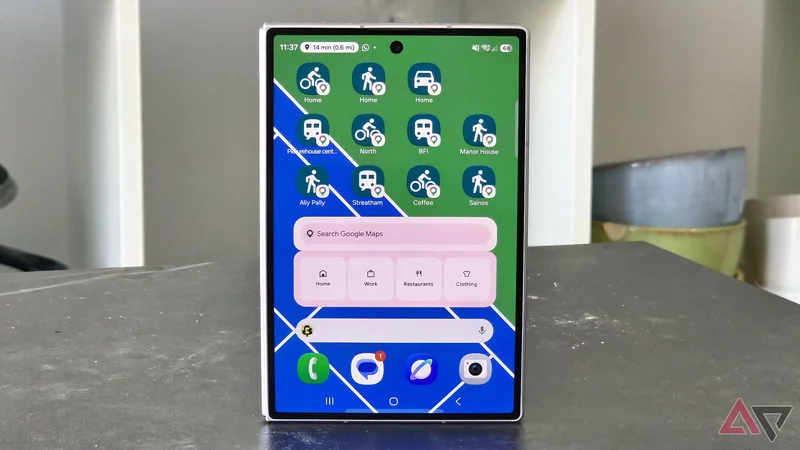
You can add shortcuts onto your phone's home screen. When tapped, they open Google Maps and instantly bring up directions to a set location.
No typing, no pressing methods of transport. You immediately know your route.
Google Maps has several home screen shortcuts, like the ability to monitor nearby traffic or share your location with a friend. But as someone who only uses Maps to navigate, I haven't played around with these much.
You can't set these up in Google Maps. They're a little hidden away, and it's why it took me years to discover they existed. But I'll let you in on a little secret.
How to set up Google Maps home screen shortcuts
It's simpler than you'd expect
So that we're on the same page, I'll talk you through how to set up home screen shortcuts for Google Maps locations on your phone. This way, you can play about with them to understand what I'm talking about.
These shortcuts are, in effect, widgets. You add them in the same way: press and hold an empty spot on your phone's home screen, select Widgets, scroll down and select Maps, tap Directions, and tap Add.
Next, you'll fill in some fields: the location you want your shortcut to take you to (for example, your home address), the shortcut's name that'll appear on your home screen (for example, "Home"), and the type of transport you'll be using.
Finally, press Save, and the shortcut appears on your phone's screen. Its icon reflects the method of transport: a tram for public transport, a bike for cycling, for example.
You can set up multiple shortcuts to the same location with different transit this way.
Why these little tools are useful for navigation
Avoid the Google Maps feature creep
Every time I open Google Maps, it's to find my way somewhere.
While some use Google Maps to discover their neighborhood or create lists of destinations to visit, I only want to know which street or bus to take to get somewhere.
These social tools often get in my way when I'm trying to navigate. I'll try to find my way to a restaurant, but instead will be told its rating, menu, table availability, whether commenters think it has a "chill vibe" or smells nice.
But with these Google Maps shortcuts, I can bypass the noise entirely, and get what I want: directions. Pure and simple.
Soon after discovering the home screen shortcuts, I found myself letting loose a little bit. I initially started with one widget: a button I could press to navigate home on public transport, from wherever I was.
This was the single useful widget that sold me on the shortcuts. I often venture to different parts of my city, and live in a borough with unreliable public transit. I can't rely on the same bus or train line, and Google Maps could cater for the changing whims of the transit.
Slowly, I began to add links to other parts of the city I visit frequently. My partner's house was the first, and I've since added a few more for the coffee shops, bars, and theaters I frequent.
I have different widgets for different modes of transport. Depending on the day, I might want to navigate home on my bike, on foot, or on public transport. Having three widgets lets me leap straight to the appropriate route.
It's also possible, for chain locations, to set up a widget to show you all nearby franchises. I have one that shows me local supermarkets, so I always know where I can pick up my bread and cheese.
The perfect tool for busy lives
If you're a busy person and frequently travel between set locations, these Google Maps home screen shortcuts are a vital tool.
A single press of a "Work" shortcut could tell you the best route to your office and inform you of public transport works or traffic en route. The same is true of the homes of loved ones, your gym, or a favorite getaway destination.
All this while saving loads of time that you'd usually waste on Google Maps? That sounds like a win to me, and it's why I use them so much.
Just as how I'm replacing home screen apps on my phone, the Google Maps app is being forgotten for widgets.