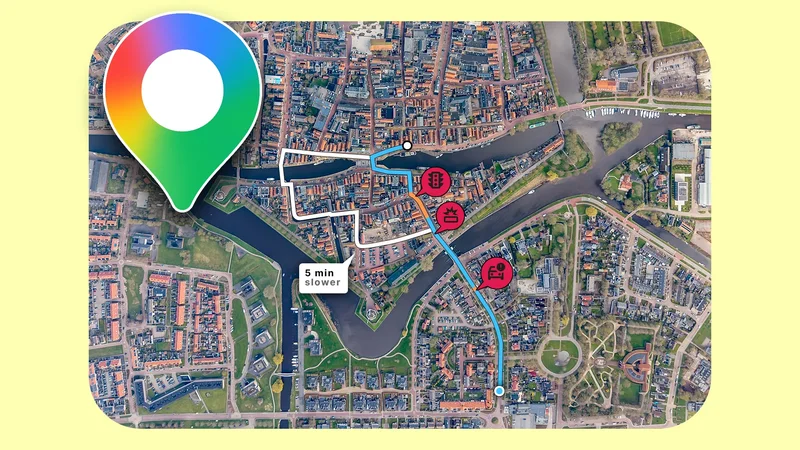
I used to follow the fastest route in Google Maps without giving it a second thought. If the app said I could save five minutes, I assumed there was no reason not to.
Then I started noticing something strange.
Sometimes I'd arrive feeling like I'd taken the long way around, even when Google Maps insisted I hadn't. Other times, those few minutes I supposedly saved came with confusing turns, awkward roads, or unexpected traffic.
That made me start looking at the "fastest" route a little differently, and I realized there was a reason I kept preferring routes that Google Maps didn't rank first.
The fastest route isn't necessarily the best option
Saving time isn't my only priority
Google Maps is trying to solve a very specific problem: getting me from one place to another as efficiently as possible.
It uses live and predicted traffic, road quality, road size, road restrictions, tolls, and other information to determine which route it thinks makes the most sense.
But my definition of an efficient trip isn't always the same as Google's.
If I'm driving somewhere unfamiliar, I might prefer a slightly longer route if it keeps me on larger, more straightforward roads.
If I'm already tired, I might happily accept an extra five minutes to avoid back roads, alleys, or a complicated series of turns.
And if I'm driving during a busy part of the day, I might care more about having a predictable drive than shaving a couple of minutes off the estimated arrival time.
That's when I started treating ETA as just one part of the decision. Google Maps can tell me which route it considers best, but I'm the one who has to drive it.
Google Maps can estimate travel times for a specific future departure or arrival time, rather than telling you what the trip looks like right now.
On Maps, enter the details in the Leave or Arrive sections for a better estimate.
Google Maps gives me more information than just the ETA
I look beyond travel time
After I started comparing routes, I realized that Google Maps provides several clues about what the drive will be like before I leave.
When multiple routes are available, Maps shows the recommended option in blue and the alternatives in light blue (the opposite applies in dark mode).
I can tap any of those alternatives to switch routes, and Maps shows the estimated travel time for each one.
I can also check current traffic and typical traffic patterns before starting a trip. After entering my destination, I tap Directions, choose Drive, and pull up the information card at the bottom.
Maps shows the current traffic on my route, typical traffic by hour, and slowdowns along the way. That can make a difference when I'm deciding between two routes.
Say Google Maps shows me a 25-minute route and a 29-minute route. The first one might look like the obvious choice.
If I check the traffic and notice that most of the delays are concentrated on one section of my route, I might conclude that the extra four minutes on an alternative route is worth it.
I can also activate the Traffic layer by tapping the Layers icon in the upper-right corner and selecting Traffic.
Additionally, Maps displays incidents and disruptions, such as crashes and roadwork, that may affect my trip.
The fastest route isn't always the cheapest one
I started thinking about fuel, too
Maps has an option to prioritize fuel-efficient routes, and it doesn't simply look for the shortest distance.
When the feature is enabled, Maps considers factors such as traffic, road conditions, route simplicity, hills, stop-and-go traffic, and whether you're traveling on local roads or highways. It can then highlight a more fuel-efficient route alongside the fastest one.
To activate this feature, open Google Maps, tap your profile picture, select Settings, and go to Navigation. Scroll down and enable Prefer fuel-efficient routes.
Additionally, make sure to set the correct engine type in the Your vehicles section, as Google Maps uses this information to calculate efficiency.
If I'm making a long highway trip, for example, I might care more about getting there quickly. But on a regular drive where I'm not in a hurry, I'd rather know that I'm choosing a route that's potentially easier on the gas tank.
I learned to look beyond the ETA
Google Maps has access to far more traffic and road information than I ever could, yet I don't automatically pick the route with the lowest ETA anymore.
I look at the alternatives, check the traffic, consider what the drive will be like, and decide whether saving a few minutes is worth the trade-off.
Sometimes, I prefer a longer route because it feels familiar and simpler.