I was a die-hard holdover of classic three-button navigation despite the swipe gestures having existed for many years.
I stayed stubbornly attached like a kid to the dedicated buttons on my Samsung Galaxy Z Fold 5, and I even carried that over to my recent Galaxy devices.
However, that changed when I picked up the Google Pixel 9 Pro XL. I was forced into gesture navigation since it’s the default out of the box.
After using it every day, I’ve grown accustomed to it. Now, I rely on swipe gestures across all my Android devices, including my recent Galaxy Z Flip 7.
And beyond basic controls, opting for gestures opened up a few surprisingly useful hidden navigation tricks.
I’ve given swipe a try
Now it’s become my default navigation
It wasn’t an easy transition. I tried to cling to classic three-button navigation for as long as I could.
I was comfortable with it. Soft keys feel precise and predictable. On past devices like my Galaxy Fold 5 and Xiaomi 15T, three-button navigation was the default setting anyway.
I thought I was set for years to come.
I convinced myself that switching to full-screen gestures would bring a steep, annoying learning curve. I was wrong. I eventually threw in the towel.
My Pixel 9 Pro XL was the turning point. Since gestures were enabled by default, I decided to give them a fair spin to see if they could hold up.
I appreciated that I didn’t need to configure anything right away, as the setup worked well out of the box. But I also liked that there were customization settings to explore.
On my Pixel, I can map the swipe-up gesture to launch my preferred assistant. I can also tweak the back gesture sensitivity, which works fantastically to minimize accidental triggers.
Meanwhile, One UI on my Galaxy phone offers similar sensitivity sliders. There’s a handy tool if you run a thick screen protector on top of your display.
It didn’t take long for me to get hooked. Swiping back feels more efficient than constantly stretching my thumb down to tap a dedicated back button. Plus, it works seamlessly from either edge of the display.
Mastering the swipe-and-hold action for the Recent apps menu took a few attempts before muscle memory took over. But swiping up to jump home is snappy.
I also reclaimed a chunk of valuable screen real estate compared to standard buttons, which permanently occupy a portion of the interface. That extra real estate makes a difference in compact or foldable displays.
Now, I’ve made full-screen gestures my permanent default and haven’t looked back at three-button navigation once.
Depending on your phone, you can assign the navigation bar to swipe gestures to launch an app or digital assistant.
A hidden feature on swipe gestures
It makes app switching quicker
Aside from adapting to basic navigation, I stumbled upon a very useful gesture trick.
It took me a while to uncover it on my Pixel. Better yet, you don’t need to dig into settings or flip a hidden toggle to use it.
When you enable gesture navigation, your soft keys are replaced by a thin, subtle navigation bar at the bottom of your screen.
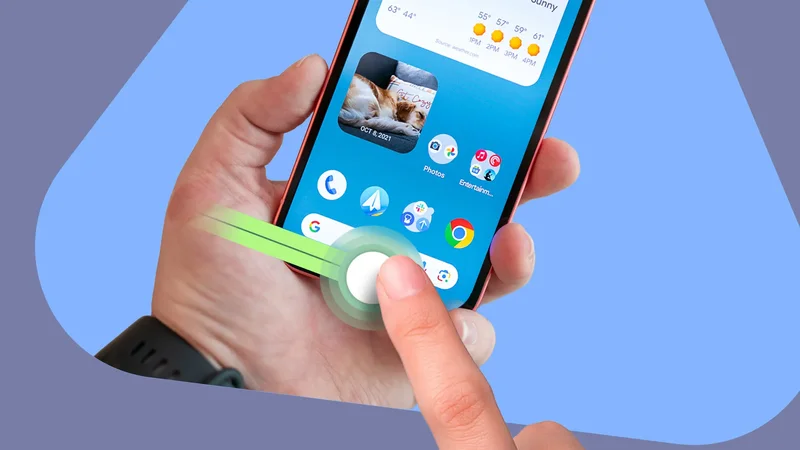
That pill does more than summon Gemini or Bixby. It doubles as a tiny slider for switching between open and recent apps.
It functions like the carousel inside the Recent apps menu, except it works within your active, full-screen app window.
To use it, go to an active app and swipe left to right across the navigation bar. This lets you instantly scrub through recently used apps.
The right-to-left gesture reverses the direction, which lets you go back to the most recent app.
It isn’t always 100% fluid. I occasionally trigger a home-screen swipe by mistake, though that’s more on my sloppy thumb than a software or calibration issue.
After I lock down the muscle memory, it becomes an indispensable workflow tool.
It’s noticeably faster than opening the Recent apps menu because it skips the step of pulling up the full multitasking overview.
On my Galaxy Z Flip 7 and Pixel 9 Pro XL, I can switch through dozens of open background tasks. The number of apps you can cycle through depends on your phone’s limitations.
Swipe gestures are not for all
Buttons are still handy for large-screen devices
I’ll freely admit that I still miss the precision of classic soft keys from time to time. Buttons are completely straightforward, and errors are very rare.
Buttons are also easier to use on massive screens like my tablet, where dragging a thumb from the outer display edge to center can feel awkward.
Plus, buttons are more forgiving if you suffer from sweaty hands, too, like mine. Dragging a sweaty thumb across a display for precise gesture detection can quickly turn into a hit-or-miss affair.
I’m not here to rave that you need to abandon the classic buttons immediately. If you’ve used and locked in on using classic buttons, there’s no real reason to break what isn’t broken.
But I’m still sticking to swipe navigation entirely
If you want to maximize your screen space and overall interface productivity, swipe gestures still beat these classic buttons.
They offer a level of immersion and flexibility that three-button layouts can’t match. Although there’s a need to master the gestures, getting used to them is quick.
And that quick app-switching bar gesture is an underrated feature that Google and other manufacturers should have highlighted.