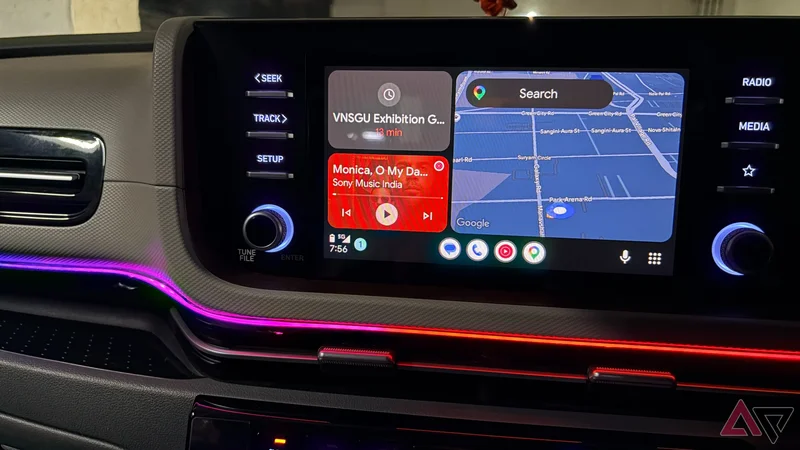
Android Auto is supposed to keep distractions to a minimum, but I still found myself reaching for the dashboard more often than I would like.
So, for one week, I gave myself a simple challenge: use Android Auto normally without touching the screen.
I expected it to be frustrating and full of compromises. Instead, it changed the way I use Android Auto on almost every drive.
I realized how often I touched the screen
Not ideal during traffic hours
I never thought of myself as someone who constantly fiddled with Android Auto while driving.
But changing a song, starting navigation, replying to a message, or checking something along the way usually meant at least a quick glance and a tap.
The problem became obvious during busy traffic hours. Even a quick tap meant taking my eyes off the road for a moment to locate the right button.
That felt less innocent when cars were constantly braking, bikes were squeezing through gaps, and pedestrians could appear without warning (and don't get me started on pets like dogs and cows appearing on Indian roads out of nowhere).
Sometimes I would look down for only a second, but in dense traffic, a second can be enough for the situation ahead to change completely.
That's why I decided to cut down on my screen usage when I am behind the wheel, but first I needed to go through some settings for a flawless Android Auto setup.
Going over my hands-free Android Auto setup
Follow these steps first
Before I could stop touching the screen, I had to make sure Android Auto was actually for a hands-free workflow.
First, I set Gemini as the default voice assistant on my phone. That way, the same assistant was available when I connected to Android Auto.
Next, I opened Gemini Settings > Personal Intelligence > Connected apps and gave Gemini access to the services I use while driving (Google Maps, Google Workspace, YouTube Music, Messages, WhatsApp, and Gmail).
When these services are connected, I don't have to think about which app to open first. I can ask for the outcome I want.
I also made sure the voice assistant button on my car's steering wheel triggered Gemini through Android Auto.
This was the most important part of the setup because it meant I could summon the assistant without reaching for the dashboard or saying a wake phrase.
Finally, I went into Android Auto settings and enabled the Start Android Auto automatically and Start music automatically toggles.
Those two toggles removed even more manual interaction. As soon as I got into the car and connected my phone, Android Auto was ready to go, and my music could resume without me tapping anything.
Gemini became the center of experimentation
Multistep commands made the biggest difference
After I stopped relying on the touchscreen, Gemini quickly became the center of my setup.
Now, I think about what I want to accomplish and ask for it.
For instance, I could ask Gemini to send my ETA to someone over Google Messages with a single command instead of opening Maps, checking the arrival time, switching to Messages, finding the contact, and typing it.
Music was as easy. I could ask it to play a specific playlist, switch to a particular singer, or start something that matched my mood without scrolling through YouTube Music.
I also found Gemini useful for things that aren't usually associated with Android Auto.
If something popped into my head during a drive, I could ask it to add a task for later.
For example, I can say, "Remind me to book the car service appointment next Friday," and it creates a to-do item in Google Tasks.
I can ask Gemini to find a specific Italian restaurant name from Google Keep and start navigation to it.
Instead of replacing individual screen taps with individual voice commands, Gemini let me skip entire sequences of taps.
I let voice commands take over
A week without constantly reaching for Android Auto's screen changed my habits more than I expected.
Voice commands and steering-wheel controls handled most of what I normally do, while the display became something I glanced at rather than actively operated.
I still tap the screen occasionally (like when I want to move to a specific section on a podcast or a song), but it is no longer my first instinct.
If you use Android Auto regularly, I recommend trying the same experiment for a few drives.
You don't need to go completely hands-free overnight. Start by replacing a few common taps with voice commands and physical controls.