I love consistency, and I would choose it over something aesthetically pleasing any day.
This is why I usually stick to my home screen setup for months rather than making changes to improve its appearance every few days.
People in my family and in my friend circle do the opposite.
This allows them to try more home screen setups than I can in a given timeframe, but I don't understand why many of them are so obsessed with organizing apps in a particular order.
I wouldn't have questioned their method had they not owned a Samsung Galaxy phone. With a Galaxy handset in your hands, making the effort to organize apps on home screens isn't worth it.
I realized this soon after buying my first Galaxy phone, but I still wanted to test whether my intuition was right. So, I experimented with my Galaxy home screen.
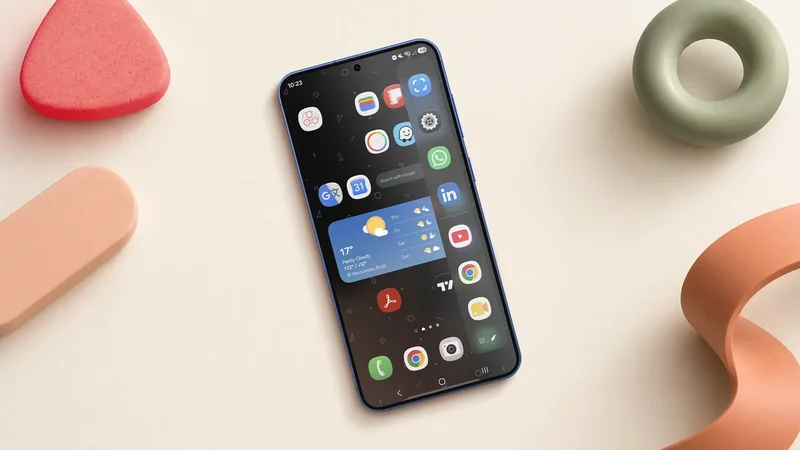
I broke my Samsung home screen on purpose to prove a point: Win order.
I love looking at organized home screens, but they are less relevant than ever
Home screens can no longer dictate how we access our apps
After you build muscle memory, it's long-lasting. That's my excuse for still trying to put the important apps in order on my home screen for better accessibility and a more organized look when I buy a new phone.
In my latest experiment, I finally broke free and removed every important app from my Samsung home screen, replacing them with some random items I rarely used.
The next step was to find answers to how I'm going to ensure easy access to all my important apps.
One UI's Modes and Routines is the best bet for this. I can create a routine to make sure all my important apps open automatically at a specific time. I can repeat this every day, week, or even month.
Moreover, I can create a routine to launch a pair of apps at a specific time every day, week, or month. Not only that, but I can create a routine to close certain apps at a specific time.
That's the power of automation, and it can bypass the need to put your core apps in order on the home screen. Routines are a better alternative because you don't need to tap anything after you set them up on your phone.
I've used my Galaxy handset this way for more than a month, and I never felt I missed out on the outdated way of accessing apps through the home screen.
I can also use this trick to make my home screen look clean. Since I'm a fan of a minimal home screen, I would rather keep it clean than replace my core apps with random items to fill spaces.
Either way, it won't matter how I access all my important apps every day.
Routines aren't the only alternative that I can rely on
I don't always know exactly which app I'll need next throughout the day
I don't always know what apps I want to use next other than those I need for work.
Sometimes I take a quick 10-minute break to listen to Spotify, and sometimes I spend that time watching something interesting on YouTube.
Since I don't know which entertainment app I want to open next, I keep them in One UI's Edge Panel. This is a great way to keep the home screen minimal, while also ensuring you don't rely on it too much to access apps.
In addition to the Edge Panel, One UI 8.5 now also has the Show Finder on Home screen setting, allowing users to search from their main screen. All you do is type the first couple of letters of the app, and you'll get what you are looking for.
To enable Finder on your One UI 8.5 home screen, open Settings, tap Home screen, and enable the Show Finder on Home screen toggle.
I've been using Finder on my home screen ever since I started using an iPhone. I didn't like iOS, but this is one of those very few features I wanted on my phone.
I finally have it on my Galaxy phone after installing the One UI 8.5 update.
I'll never go back to using Samsung's home screen the same way
This was a successful experiment, as I proved that app icons on the home screen aren't the easiest way to access apps.
But I was happier with the way I replaced one kind of muscle memory with another.
Instead of memorizing app locations on home screens, I am more dependent on Modes and Routines, Edge Panel, and Finder to access apps.
Home screens are less relevant than ever, and I'm glad that better alternatives have arrived.