The internet moves fast. Fortunately, you don’t have to spend all day refreshing your browser to keep up with it.
Mashable push notifications deliver our latest news, trending stories, and hottest deals directly to your screen. Here’s how to turn them on in just a few clicks.
Google Chrome on Android
- Open Chrome and visit Mashable.com.
- Tap the three-dot menu to the right of the address bar.
- Select - Settings, followed by- Site settingsand- Notifications.
- Make sure notifications are enabled.
- Return to Mashable. Tap the site information icon to the left of the address bar, select - Permissions, and set- Notificationsto- Allow.
Google Chrome on a PC or Mac
- Visit Mashable.com.
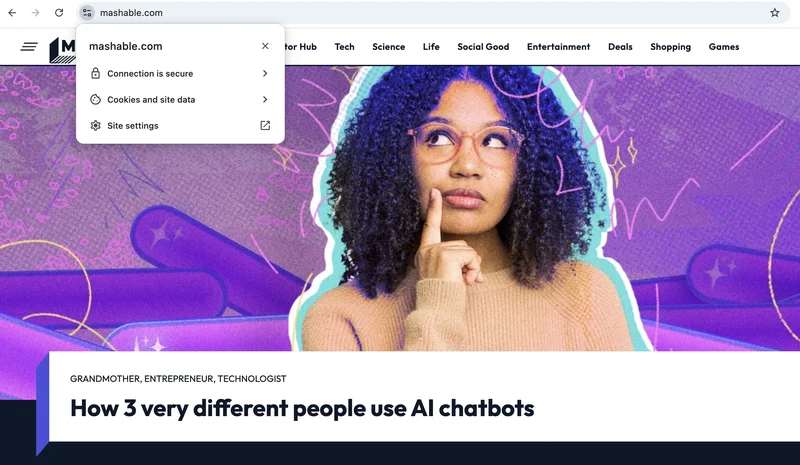
- Click the - View site informationicon to the left of the URL in your address bar.
- Select - Site settingsfrom the menu.
- Find - Notificationsand select- Allowfrom the dropdown menu.
- Return to Mashable and refresh the page.
That’s it. We’ll take it from here.
You May Also Like
Safari on a Mac
- Open Safari and visit Mashable.com.
- When Safari asks whether you would like to receive notifications from Mashable, select - Allow.
- If the request doesn’t appear, go to - Safari > Settings > Websites > Notifications. Find Mashable and select- Allow. You should also make sure- Allow websites to ask for permission to send notificationsis turned on.
Microsoft Edge
- Visit Mashable.com.
- Click the site information icon to the left of the URL.
- Open - Permissions for this site.
- Find - Notificationsand select- Allow.
- Return to Mashable and refresh the page.
Mozilla Firefox
- Visit Mashable.com.
- When Firefox asks whether Mashable can send notifications, select - Allow.
- If you don’t see the prompt, open the Firefox menu and go to - Settings > Privacy & Security. Scroll to- Permissions, find- Notifications, and click- Settings. Locate Mashable, change its status to- Allow, and save your changes.
Help! I signed up, but I’m not receiving notifications
If you followed the steps above but Mashable alerts remain suspiciously absent, don’t worry. A browser or device setting may be getting in the way.
1. Check your browser settings
Start by returning to Mashable.com and clicking the site information icon beside the URL. Make sure Notifications is set to Allow.
You can also check the notification permissions in your browser’s settings:
- Chrome:Settings > Privacy and security > Site settings > Notifications
- Firefox:Settings > Privacy & Security > Permissions > Notifications
- Safari:Settings > Websites > Notifications
- Edge:Settings > Cookies and site permissions > Notifications
Find Mashable and confirm that notifications are allowed.
2. Check your device settings
Your browser may have permission to send alerts while your computer is quietly blocking them.
On a Mac, open System Settings > Notifications. Select the browser you used to sign up, turn on Allow notifications, and choose Banners or Alerts as the notification style. On older versions of macOS, you may find these controls under System Preferences.
On a Windows PC, open Settings > System > Notifications. Make sure notifications are turned on for Chrome, Firefox, Edge, or whichever browser you used.
3. Make sure notifications aren’t silenced
Finally, check whether a focus setting has put your alerts on mute.
On a Mac, open Control Center > Focus and make sure Do Not Disturb is turned off.
On Windows 11, go to Settings > System > Notifications and check that Do not disturb is disabled. If you’re using Windows 10, open Focus assist and make sure it is not set to Alarms only.
Once those settings are cleared, Mashable notifications should be free to make their grand entrance.
today.
*Barbara Pavone contributed to this article. *
Olivia Tauber is the deputy editor of digital culture, covering creators, media, movies, beauty, and more. Based in New York, her work has appeared in The New York Times, Vanity Fair, The Cut, Teen Vogue, Complex, and Interview Magazine. She holds a Master's degree in Journalism from NYU and a Bachelor's from the University of Michigan. She also runs Fan Mail, a weekly pop-culture newsletter.