I found a free, open-source Android app that replaced 8 other apps I used to rely on
Aug 22, 2026 — 6:30 AM ET
One of my favorite things about using an Android phone is that I can find apps for pretty much anything, be it stitching images, rearranging PDFs, or creating QR codes — you name it. And that enables me to tackle many trivial tasks right on my phone.
For the longest time, I used to download a bunch of apps — besides the essential ones — on every Android phone I used. But it wasn’t really practical: I had to redownload all the apps when I switched phones and keep them updated for the best experience. Not to mention, it also increased storage usage.
But that changed when I stumbled upon Image Toolbox, an Android app that packs dozens of tools to help with various media-related tasks on a phone. I’ve since replaced several single-purpose apps on my Android phone with Image Toolbox, and it has been serving my needs incredibly well.
Do you prefer using multiple single-purpose apps or a super app?
Image Toolbox is the Swiss Army knife of media tools
Image Toolbox is a highly functional app that packs dozens of media tools under one roof, eliminating the need to find and download multiple apps individually. It’s open-source and completely free to use. And the best part is it doesn’t contain ads despite being free.
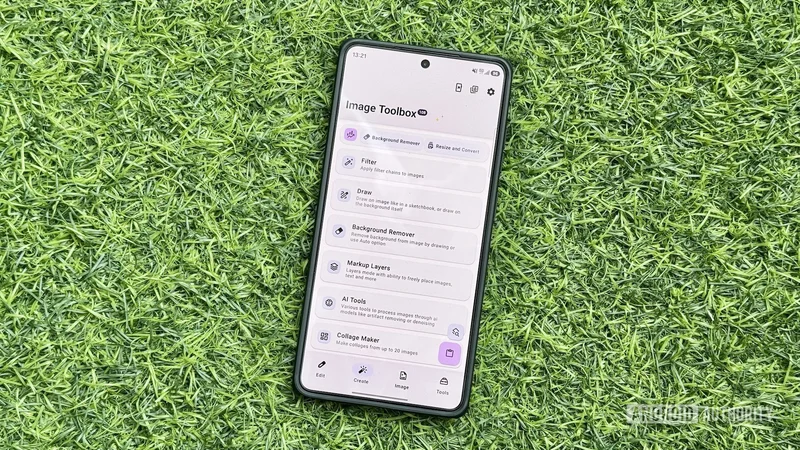
The app’s interface is also very responsive and easy to navigate. You get four tabs on the bottom navigation bar: Edit, Create, Image, and Tools. All the different tools the app offers are spread across these tabs. For instance, the Edit tab contains all editing-related tools, such as Resize and Convert, Crop, and Format Conversion. Likewise, you’ll find creation tools on the Create tab and other image-related operation tools on the Image tab. The Tools tab comprises all other media-related tools, such as Document Scanner, GIF Tools, and QR & Barcode.
Some of the tools in the Image Toolbox app are grouped and named categorically. For example, when you select GIF Tools in the Tools tab, it expands to a bunch of tools, such as Images to GIF, GIF to images, GIF to JXL, and GIF to WEBP. This is done to make related tools easier to find and prevent them from cluttering the four main tabs.
Apps I no longer need thanks to Image Toolbox
I’ve known about Image Toolbox for years and have used it for one-off tasks on my Android phones quite a few times. However, it’s been a few months since I started using it regularly for various media-related tasks on my Android phone, and I no longer feel the need to go back to the individual apps I previously installed for specific tasks. In fact, I didn’t even install any of the following apps when I switched to the Galaxy S26 Ultra earlier this year.
Image resizer and converter: Image Toolbox’s Resize and Convert tool handles image resizing and conversion quite well. It lets me resize any image by simply entering my preferred width and height. Similarly, it allows me to convert images between different formats with a few simple taps. For conversion, it even offers the option to choose a compression type. What’s also nice is that I can see the final size of the file once it’s resized or converted without needing to save it. Besides, when I want to convert multiple images, Image Toolbox has a dedicated Format Conversion tool. It works similarly to the convert feature in the Resize and Convert tool and allows for quick batch conversion.
EXIF remover: The Delete EXIF tool in Image Toolbox simplifies deleting EXIF from photos. By default, it removes all EXIF data, but there’s an option to remove tags selectively. And the best part is that I can remove EXIF data from a bunch of images at once.
Background remover: Image Toolbox’s Background Remover tool is quite nifty for quick background removal, offering both automatic and manual background removal. I’ve found the RMBG, InSPyReNet, and BiRefNet models to be the best for automatic removal. But when it can’t effectively select objects for removal, the manual mode comes in handy. It works pretty well, too, and you can enable a helper guide for precise manipulation.
PDF editor: Image Toolbox offers a powerful PDF tool called PDF Tools that packs a bunch of useful tools to help with various PDF-related tasks. I use it for all my PDF operations, be it creating a PDF out of images, merging PDFs, removing pages from a PDF, or rearranging PDFs. It even lets me password-protect PDFs, unlock PDFs, and compress PDFs to reduce their size.
Image stitcher: The Image Stitching tool in Image Toolbox makes stitching images horizontally or vertically really easy. I use it all the time to stitch screenshots I take for various articles I write as part of my job. All I need to do is select the images, and it returns the stitched image. I can then change the order of their appearance, switch between horizontal and vertical stitch modes, adjust spacing, and set the desired output image format and compression type based on my requirements.
GIF creator: Image Toolbox’s GIF Tools is a collection of multiple GIF-based tools. My favorite is Images to GIF. It lets me turn a bunch of images into a GIF, which is useful for demonstrating a process.
QR code generator: QR & Barcode is a comprehensive barcode tool in Image Toolbox that helps me generate QR codes instantly. It has plenty of templates, such as Wi-Fi, Email, and Phone, to simplify QR code generation. Plus, there’s the ability to create one with simple text. I like the various customization options it offers, too, and use them whenever I want personalized QR codes.
Collage maker: With Image Toolbox’s Collage Maker, I can create collages just as effectively. It automatically picks the appropriate template, and I’ve found it to be pretty good most of the time. When it isn’t, I can easily drag and drop images around. Among other things, it lets me choose from various grid layouts, set a different aspect ratio, change the background color, and configure other aspects of the collage, like spacing, corners, and more.
In addition to the above, I use a few other Image Toolbox tools. These include WEBP Tools to convert WebP files to images, Watermarking to watermark images, and Edit EXIF to fix EXIF data for images taken with old cameras. I also sometimes use the Gradient Maker tool to generate gradient wallpapers for my devices.
I always customize Image Toolbox before using it
Image Toolbox is a highly customizable app. As such, you can configure its various aspects, ranging from the theme and tools layout to the default save location and other app behaviors. To do any of it, tap the gear icon in the top-right corner of the app, then tap a setting and change it per your preference.
I change a bunch of Image Toolbox settings before I start using it. First, I enable the Launcher Mode option, which makes all the tools appear like home screen app launchers across all the tabs. This makes them easier to find, and I don’t have to scroll through a long list. Keep in mind, though, that you won’t see tool descriptions in this mode. Another option I turn on is Search, which adds a floating search button to the app. It’s what I use primarily to find any tool in the app. Both of these are available under the Tools Arrangement settings tab.
Then, I change Image Toolbox’s output behavior. By default, it saves edited files to Documents/ImageToolbox. However, I prefer having modified files saved next to their original files, so I enable the Save to Original Folder option under the Output folder settings. I also don’t like the way Image Toolbox names edited files. For this reason, I enable the Add original filename option and, simultaneously, remove the default prefix and add “image-toolbox” to the suffix. This way, it’s easier to identify which files were modified using Image Toolbox. You can find these options under Filename settings.
While you’re on the Settings tab, I recommend exploring other Image Toolbox settings. There are plenty of other useful settings I haven’t touched on that you can benefit from.