Backups are the first thing I set up on any Android phone. Google Photos sync, system backups, and WhatsApp backups — these are the big three for me and for any family member, and they've saved us many a headache.
However, Android backups have never been perfect, no matter how many boxes I've tried to tick to ensure that everything gets saved. Each time I restored, I realized I was missing something and I had to manually transfer it or set it up again.
One such caveat was the lack of automatic file or document backups: Anything I locally saved on my phone remained there unless I manually sent it to the new one. That's changed now because Android finally added a built-in document backup feature.
It's really easy to back up your files on Android now
But you have to manually turn it on
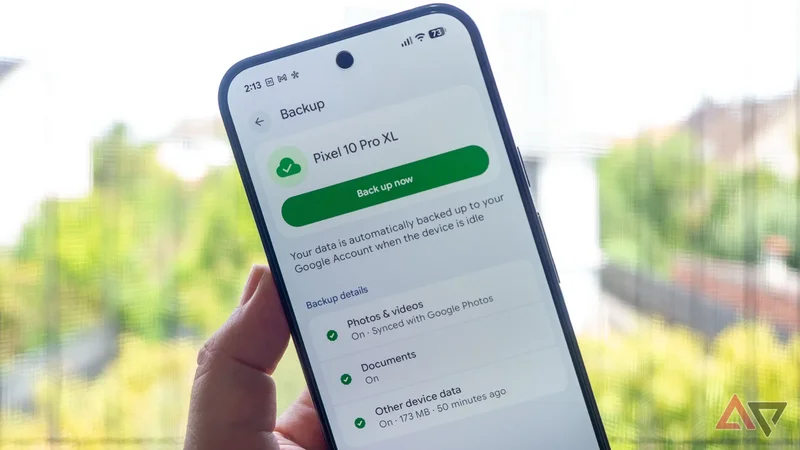
The option to back up documents on Android started rolling out a couple of weeks ago with Google Play Services v26.25. Not all my phones have it, though, despite running a newer v26.28, so it's likely this is a server-side change.
To check if it's available to you, go to Settings > Accounts and backup > Google backup and look for the Documents option. It should be in the middle, between Photos and videos and Other device data.
The feature was turned off on my phones. I had to tap to open its settings page and toggle on Back up documents. Google then warned me that these backups counted against my Google Drive storage, which is getting close to full.
You can wait until an automatic backup happens to get those files saved or go back and hit the Back up now button to force it for the first time. After that, it should happen by itself, in the background, without you thinking about it.
As for the backed-up documents, you can find them on the settings page under View documents in Drive or just manually go to your Google Drive and look for the Android backups folder. Every phone or tablet you own will have its own subfolder there.
Simple, always-on document backups are great
This is exactly what I needed
Just like all backup settings on Android, this is a set-it-and-forget it feature. You make sure it's enabled and let it do its thing. It's really nice to see backed-up documents so readily available in Drive, without having to dig for them.
The automatic organization by device helps, too, especially if you have a phone, a tablet, and more. It seems like Google also creates sub-folders to indicate where your file was originally located on your phone, which is neat. Mine were all in the Download folder.
I noticed that .PDF, .ZIP, .APK, and .JSON files were backed up, but Google says it should also handle .DOC, .PPT, .XLS, and potentially more document types. Images in my download folder did not get backed up when I tested it.
There aren't many granular options here, but the simple on/off setting is enough to make it work for me. I manually back up and organize my most important documents anyway, so this is now my catch-all for those files I forget, which is rare.
I appreciate that it can also help me install APKs that aren't available on the Play Store on a new phone. Previously, I had to manually transfer those between phones; now I just know the file will be accessible on my Google Drive.
Some extra controls wouldn't hurt
Google can let us customize these backups further
Android's new document backups are not enabled by default for now. If you don't know about them (and don't read Android Police), you wouldn't know that the option exists. I hope Google enables them by default when you set up a new phone, though.
Google also warns that there's no proper sync — it's just a one-way backup. When I made changes to my local docs or deleted them, the changes didn't reflect in Google Drive. Only new files got sent. There's no sync back to your phone, either.
Perhaps, though, the most annoying part is that you don't have control over what gets backed up. It's all or nothing. I would've liked an option to select by file type or by folder. Maybe these granular settings will come later.
With Google informing everyone that backups now count toward Drive storage and limiting new users to 5GB of storage, the ability to decide what exactly gets to eat your Drive storage and what doesn't is sorely needed.
Set this up now if you don't want to lose your documents
I recommend you dig into your phone's settings and enable document backups now so you don't lose anything after a theft or an accident. You don't want to be scrambling for a way to recover lost files, especially when there's such an easy way to back up now.
The only caveat is storage space. Make sure you have enough and go in and delete unnecessary backups of larger files that you don't need on your Drive. You can also use these good tricks to free your Drive and Photos storage.