Building an OPNsense router
April 19, 2026
The first thing to understand when building your own router is what is usually meant by the word ârouterâ. Your ISP will give you a (usually white) box with blinking lights which they call a router but which usually has several functions in the same package, all typically with a very low level of configurability:
- A “gateway”, which sits between the wider internet (WAN) and your LAN, hands out IP addresses to your local devices via DHCP, and handles network address translation (NAT), the process that brokers between external IPs in the public internet and local ones in your LAN. More advanced gateways will also let you do things like tunnel all traffic through a VPN.
- Basic “firewall-like” functions: blocking potentially harmful traffic and basic content filtering.
- A Wi-Fi access point
- A switch, allowing other devices to connect to it directly by Ethernet
In previous posts I wrote about how I decoupled the Wi-Fi functionality and split the network topology up with a bunch of switches and a trunk line between my house and office. My goal was to also have a router which would allow me to properly do all these more advanced networking things I had started to hear about, and to properly support the 10Gbps and VLAN functionality I had built into the network.
Router on a stick
In the previous post I wrote about the network topology I decided on, which called for a “router on a stick” in my home office. This means the router is connected to a switch somewhere in the network like any other device, not necessarily at the “bottle neck” point (i.e. directly connected to the fibre modem) where it would be in most consumer setups. The network is then segmented using VLANs in a way that traffic flows through this router in both directions on its way to and from the WAN or between LAN devices.
I wrote a lot more detail about VLANs in the previous post, so you can read about my decisions there. From the router’s perspective, it just had to support VLAN tagging to be able to support the network topology I had built out. Most consumer routers don’t, but from what I read it seemed like a very basic feature of any router’s operating system once you go one step beyond consumer.
OPNsense
So I spent some time researching what it would mean to “level up” from my ISP’s router to something better. There’s a few options, and the simplest is to buy a dedicated “routing appliance” or “gateway” like the UniFi Cloud Gateway series from Ubiquiti. These are solid options, they are very plug and play and give an Apple-style “it just works” experience. They are painfully expensive however.
I read a lot about OPNsense in various places. It’s open source, based on the venerable FreeBSD Unix-like OS, and has basically every feature you could possibly ask for when configuring your network. It is itself a fork of an older project, pfSense, which is also still in active development and it seems like there is quite a split in the homelab community regarding which is better. I went with OPNsense in the end because I read a few tutorials from folks I trusted who seemed to think it was the way to go.
OPNsense will give us a very powerful setup allowing us full control over NAT, DNS, DHCP, VLANs, firewall rules, VPNs and a lot of other things, including extremely detailed monitoring of all traffic on the network. If those things are all meaningless to you, they were mostly meaningless to me as well before I started on this journey, so hopefully I’ll be able to explain it all below!
Hardware
First, I had to decide what hardware I would use for my router. Ultimately, a router is just a computer with a very specific use case, so you can really use any computer as a router. Most ISP-provided routers are very low-powered computers with some whitelabelled, detoothed Linux operating system on them.
You can buy a small form-factor computer like a NUC, or a dedicated “routing appliance” like the ones from Protectli, but the easiest way is just to buy an old, refurbished enterprise desktop computer, preferably in a small form factor, and then install OPNsense on it.
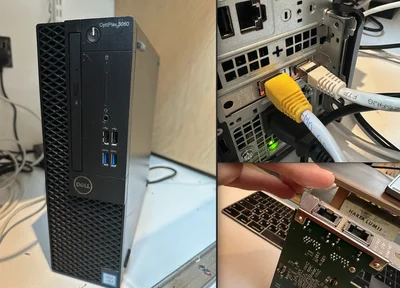
The hardware I ultimately settled on was a Dell OptiPlex 3060 in the “small form factor” (SFF). This is significantly smaller than a “full-size” tower desktop, but bigger than the “micro form factor” computers, which are too small to take PCIe cards, and I wanted to install a 10GbE network interface card (NIC).
Specs
- Intel Core i5-8400 (6-core, 8th gen)
- 16GB DDR4 RAM (overkill)
- 256GB NVMe
- Intel X540-T2 dual 10GbE NIC
The first NIC I bought didn’t work. I bought a new one from Amazon but it turned out to be some cheap Chinese imitation one and not a genuine Intel one (I was buying a lot of parts at the same time so I was a bit distracted), so the Dell didn’t recognise it when I installed it. I just returned it and ended up buying a used genuine Intel one for less.
Putting the card in was very straightforward, and once it was in it was just a matter of turning the machine on and installing OPNsense.
Using refurbished consumer hardware feels a bit uncomfortable: how long is it going to last? Thankfully there’s an easy way around this: you just change your mindset and treat your router like it’s a commodity which could die at any moment and plan for that contingency. OPNsense lets you easily download the full configuration as an XML file, so if the machine does die you can just swap it out for a new one, install OPNsense, upload the XML file and you are ready to go. So the bottleneck really becomes the time it would take to order and receive a new machine and NIC, meaning one day I might be happy I kept my ISPâs router in the cupboard instead of ceremonially smashing it to pieces.
Installation
The actual installation of the OPNsense operating system is straightforward:
- Download the installer ISO from the OPNsense page.
- Flash to a USB drive on MacOS (I used dd which seems to be the standard way to do it if you’re comfortable with the terminal)
- Boot (hold F12 while booting to boot from the USB drive) and follow prompts
- Assign interfaces (WAN/LAN)
The only gotcha I encountered was needing to disable Secure Boot in the BIOS before installing. Secure Boot only allows bootloaders signed by a “recognised authority” to run, and FreeBSD’s, and by extension OPNsense’s, bootloader isn’t signed. Some major Linux distros (Fedora, Debian, Ubuntu, etc) get their bootloaders signed, but FreeBSD didn’t (a combination of open source resources and philosophical resistance to Microsoft’s control of a critical piece of security gatekeeping), so the machine will just refuse to boot the installer if Secure Boot is toggled on in the BIOS. Essentially you’re trading one security mechanism for another: firmware-level boot verification for an OS you chose and fully control. For a homelab router I think this is a perfectly reasonable tradeoff.
VLANs
The first thing I needed to do was configure the VLANs. Since I’d set them up on the switches, nothing would work until the router was set up to be compatible with them. The router config is quite a lot simpler than the switches, and I didn’t run into anywhere near as many issues as I did when configuring the switches. Basically you just define virtual “interfaces” for each VLAN, and give the router a dedicated IP at each interface (e.g. 192.168.20.1 on the “trusted LAN” VLAN which has ID 20).
DNS
The Domain Name System (DNS) is the way that IP addresses get translated back and forth to URLs. There are global DNS servers, which are what allow you type google.com in your browser address bar and then forward you to the IP address of Google’s servers, like a giant global phone book. In your LAN, you can also use DNS to do similar things, so instead of remembering that your Plex server is located at 192.168.20.15:32400 you can just type plex.local into your address bar.
Setting this up requires three things:
- Decide what your domain will be. If youâre just going to access it from home, it can be pretty much anything so long as it doesnât conflict with global DNS. If you want to be able to access your stuff at the same address locally and remotely, like I did, youâll need to register a domain and then use that here. Later I will explain how to set up the external access to the same domain.
-
Setting up your DNS overrides in OPNsense. This is a list of things you would like the DNS to handle, and you tell the router to send them all to your reverse proxy (see next point).
-
A reverse proxy, like NPM, which stores the explicit mapping between domain and IP:port, as well as some other technical stuff like SSL certificates.
DHCP
Dynamic Host Configuration Protocol (DHCP) is a server hosted by your router that hands out IP address to devices that connect to it. The same sort of server sits on your ISP’s equipment in one of their networking centres and hands out a public IP to your modem.
When connecting your most commonly used devices, like always-on servers, entertainment devices, you may want to configure them with static IPs, meaning they will always be found at the same address whenever they connect. But you don’t want to do this for every single device that needs to connect to the internet - phones, laptops, internet-connected fridges. So DHCP will just give them one dynamically, and in a configurable router OS like OPNsense, you can configure the range of IPs that different interfaces can hand out over DHCP. This lets you set up a very nice correspondence between addresses on a specific subnet, e.g. the range 192.168.20.100 to 192.168.20.200, and the VLAN with ID 20. You can then use 192.168.20.1 to 192.168.20.99 for the static IPs in that VLAN.
Firewall
Once you have the VLANs and DHCP set up, you’ll want to set up firewall rules that actually “implement” what you had in mind for the VLANs. For me, my 20 VLAN was a “trusted LAN”, so I wanted to exclude access to it from all my other VLANs (guest, IoT). The IoT VLAN (30) can only access the internet and not any of the other VLANs. And the “DMZ” VLAN (50) is also restricted to only access the internet. The AI DMZ (60) has a few additional restrictions: I want to be able to choose the specific websites on the internet it can access, to really make sure any agent I “set loose” there is tightly controlled by me. I also plan to use 80 and 81 (and maybe other 8x VLANs) in the future for VPNs.
VPN
One of the things I was most excited about with OPNsense was the ability to tunnel traffic through a VPN at the router level. I have a PrivateVPN subscription with endpoints in countries I used to live in, and I wanted to be able to route my Apple TV through one of them on demand so I could access that sweet geo-restricted homesickness-inspiring content.
OPNsense has WireGuard built in (it used to be a plugin but it’s been part of the base system since 25.x). Setting up a tunnel is straightforward: you create a “local” WireGuard instance with your client private key and tunnel address, then add an “endpoint” with the server’s public key, address, and port. Do this for each country you want to connect to, enable WireGuard, and you have your tunnels.
My first attempt immediately broke the internet for every device on the network. The problem was AllowedIPs \= 0.0.0.0/0 on the endpoint, which tells OPNsense to route all traffic through the VPN tunnel, not just the Apple TV’s. The fix is to tick “Disable Routes” on the local WireGuard instance so it doesn’t override the default route, and then use policy-based routing to selectively send traffic through it.
I initially set this up with a firewall rule that matched the Apple TV’s source IP and routed it through the VPN gateway. This worked, but toggling between VPN countries â or turning VPN off entirely â meant logging into OPNsense and fiddling with firewall rules, which is not something I want to be doing every time I sit down to watch something.
The solution I eventually want to implement is to give each VPN its own VLAN: for example in my case 80 for Sydney and 81 for Tel Aviv. Each VLAN will get its own interface, DHCP range, and firewall rules that force all traffic through the corresponding WireGuard gateway. On the physical switch then, I will be able to set up three ports as access ports: one on VLAN 20 (my regular LAN with no VPN), one on 80, one on 81, and patch them to labelled ports on my patch panel. Then toggling VPN is a physical action: I move one patch cable on the front of the panel. No logging in, no firewall rules to toggle, just move the cable and the Apple TV picks up a new IP on the right VLAN.
Removing my ISP router
I had done all this with my ISP router still plugged in and sitting in its original place between the ONT and one of my new switches.
But with OPNsense handling routing, NAT, DHCP, DNS, and firewall, the ISP router is now redundant. With it still in the path, you end up with “double NAT”: the ISP router translates your traffic once, then OPNsense translates it again.
In theory once everything is set up, you should be able to just remove your ISP router and plug the ONT directly into the switch. In practice, I encountered two problems. First, the ONT caches the MAC address of whatever’s plugged into it, so after swapping cables you need to power cycle the ONT and wait a minute or two for it to come back up and recognise the new device. Second, OPNsense itself can hold stale DHCP leases from the old connection â if you’re still seeing a 192.168.x.x address on the WAN interface after the swap (instead of the public IP from your ISP), releasing and renewing the lease (or flushing the lease file from the shell) should sort it out.
Once it’s done, you should see a public IP on OPNsense’s WAN interface, single NAT, and full control over your network edge.